Add Offices
Save your office addresses to manage and place purchase orders.
Offices page
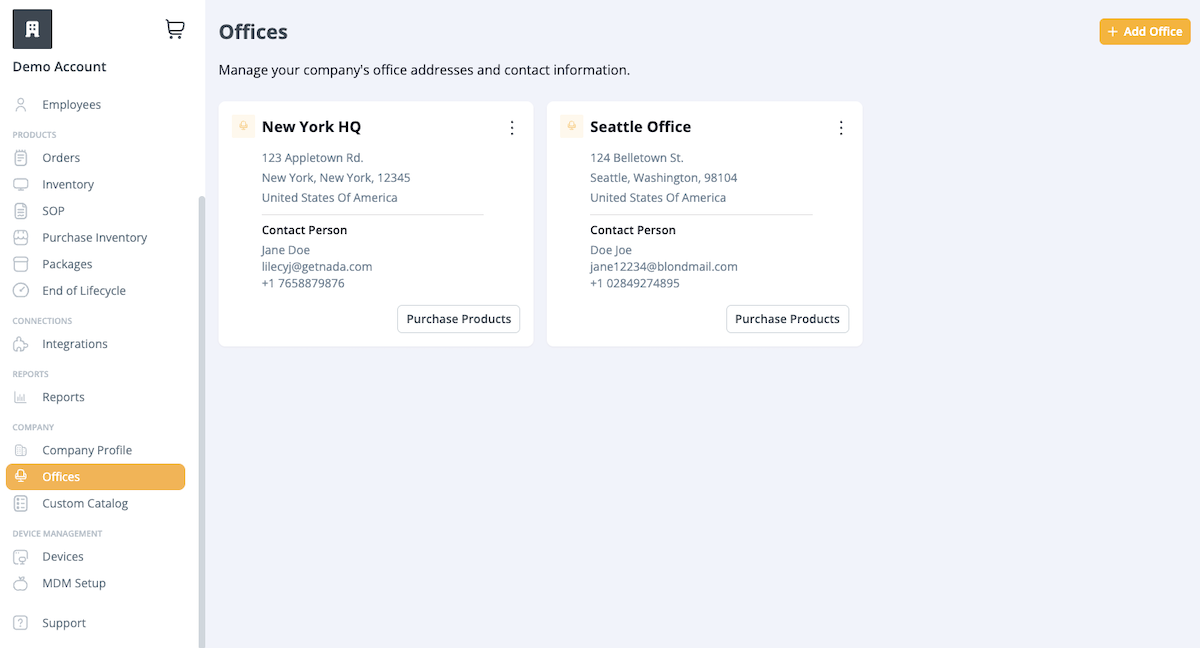
The Offices page is where you can add offices, addresses, and contact information.
- Select the Offices tab in the navigation bar. This will take you to the Offices page where you can manage your office addresses and contact information.
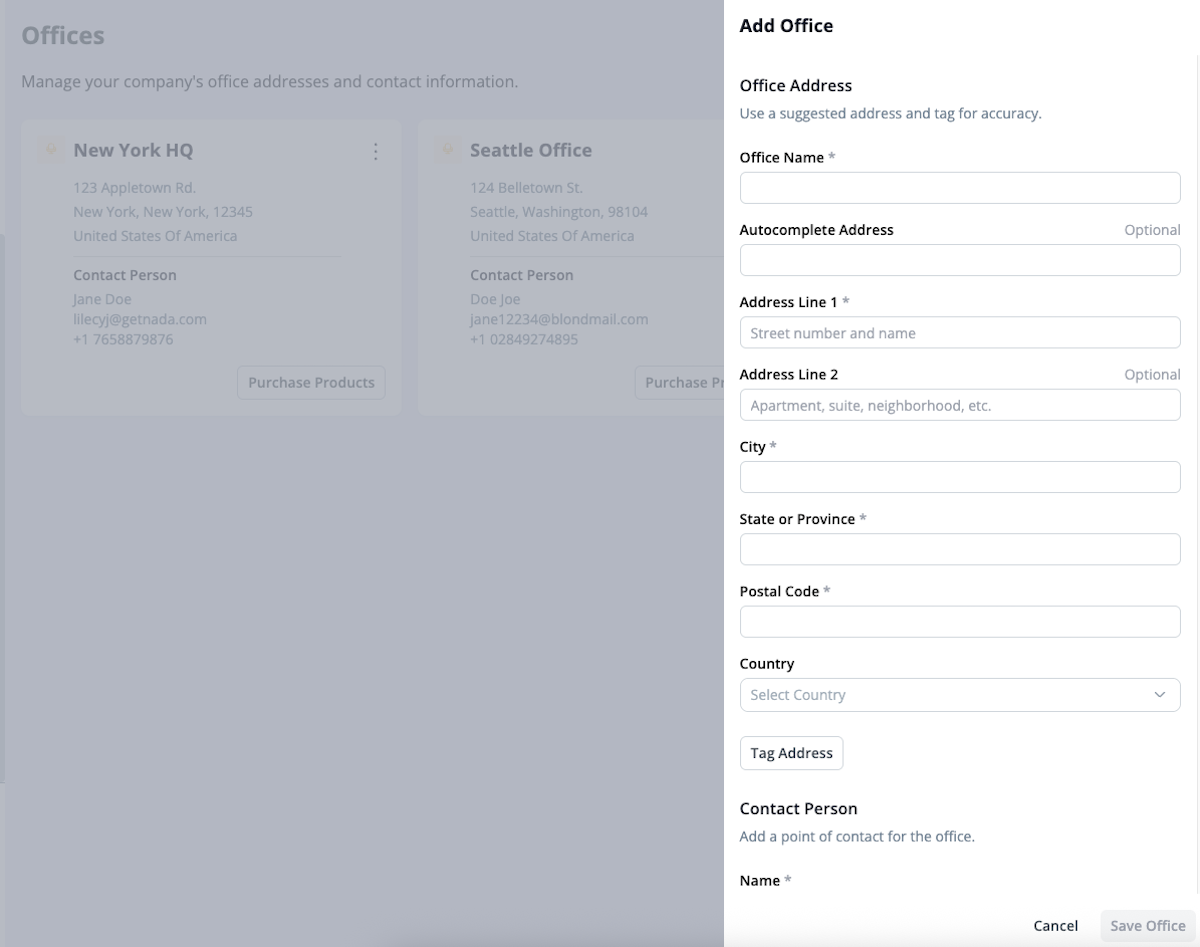
- Select Add Office. You'll fill out a short form with the Office Name, Address, and contact information. Select Continue.
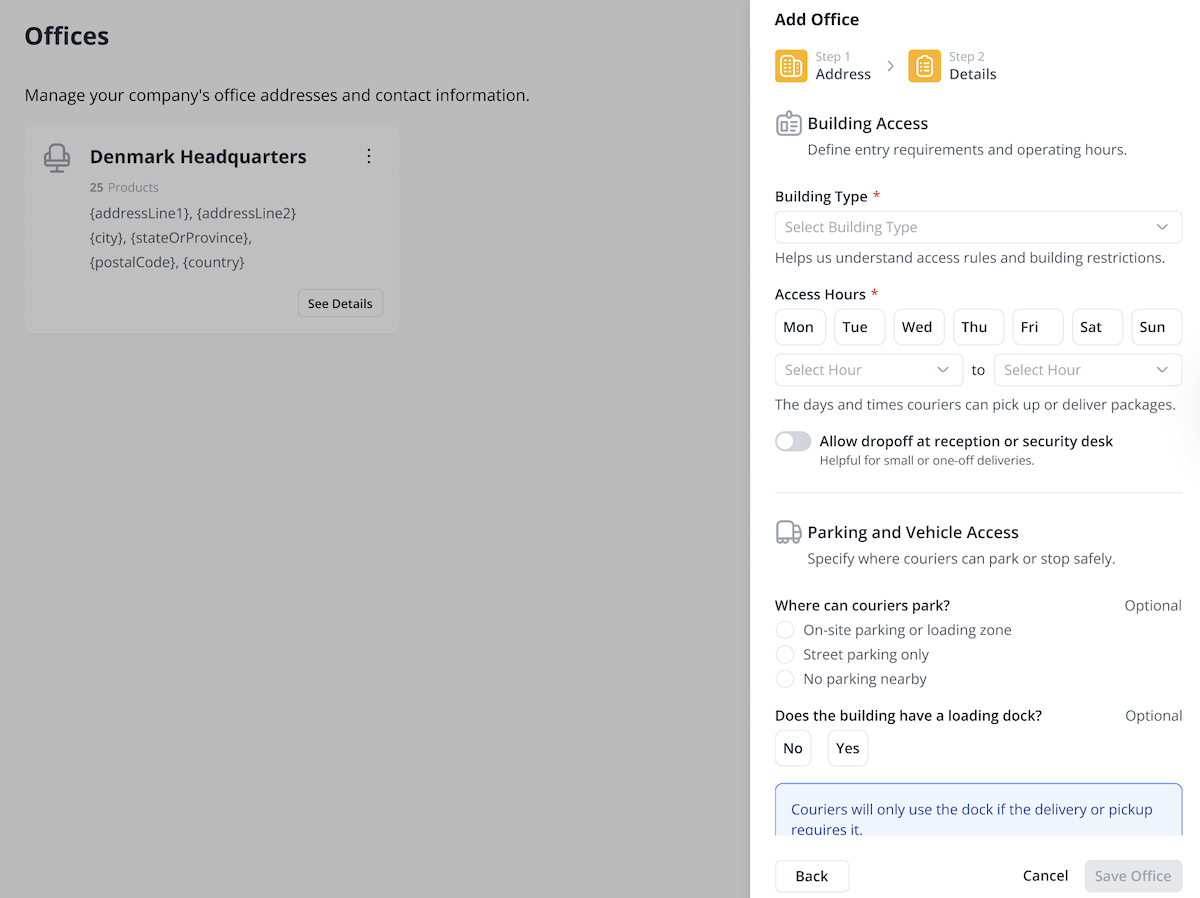
- Next, enter office details. In the Building Access section, select a building type and provide access hours. In the Parking and Vehicle Access section, indicate where couriers can park and whether a loading dock is available.
Office Inventory
When selecting the office, you will be navigated to the office's Inventory page. Products will be part of an office's inventory if the product:
- Was added via Import Inventory, indicating that the product will continue to be stored in-house.
- Was purchased through the Office Purchase order type. In Office Inventory, you can update a product's location, request a collection by GroWrk, or purchase new products to be shipped directly to the office.
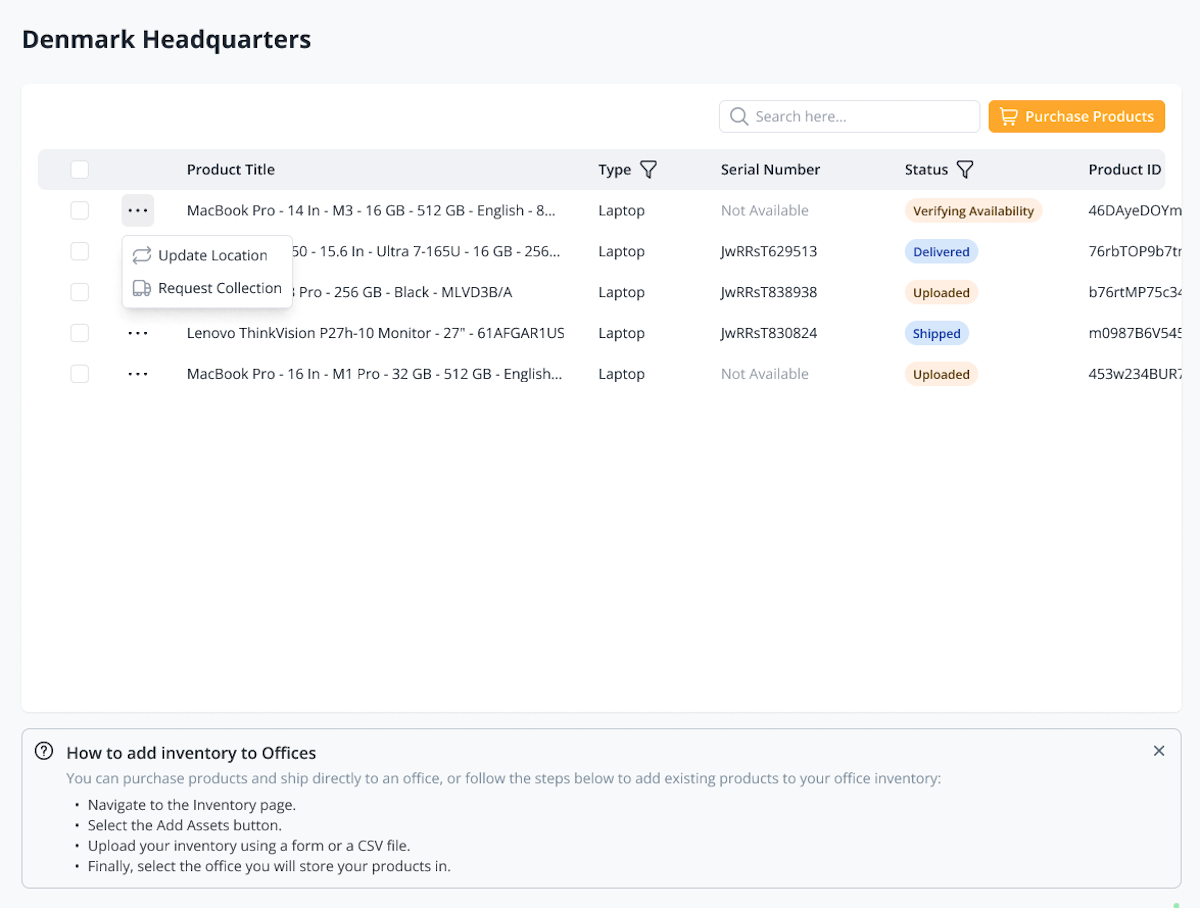
Update Location
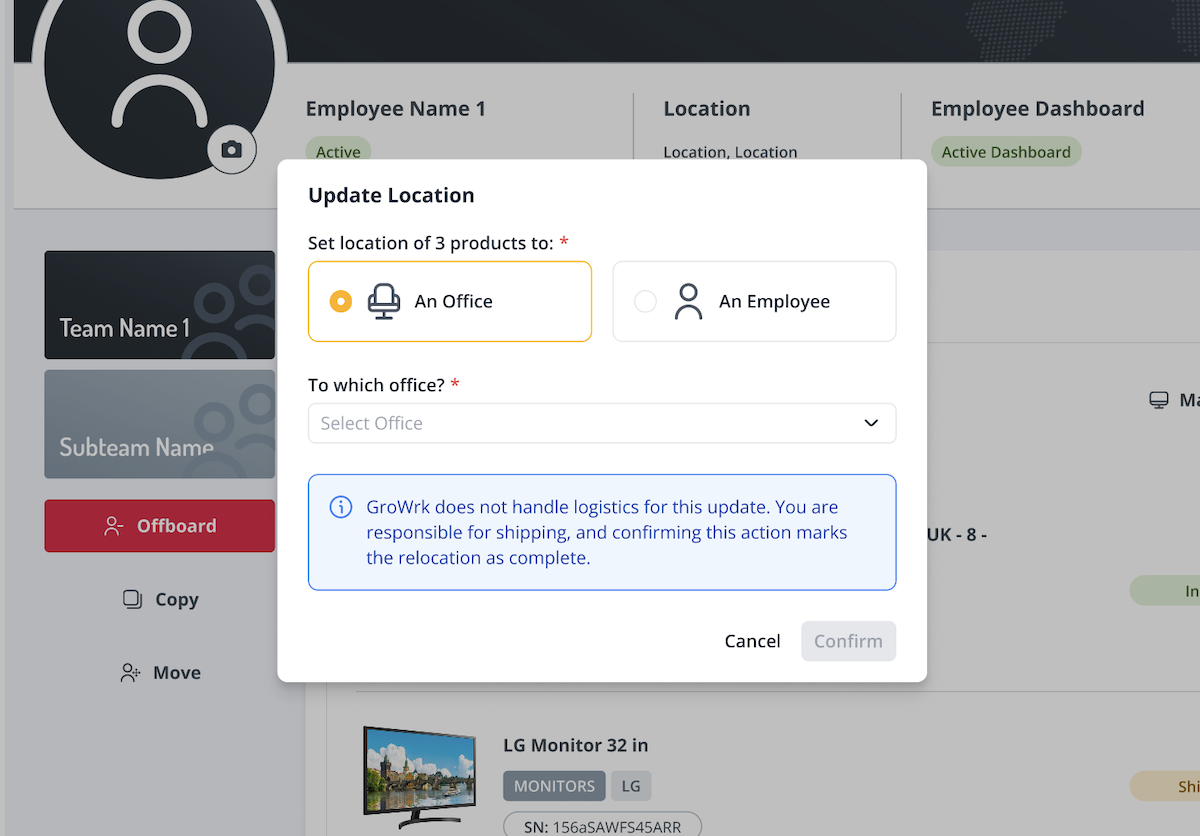
Within the Office Inventory and Employee Profile, the Update Location button allows clients to update a product's location by assigning it to an employee or transferring it to another office. This action does not involve GroWrk logistics and is intended to provide visibility into internal movements within your company.
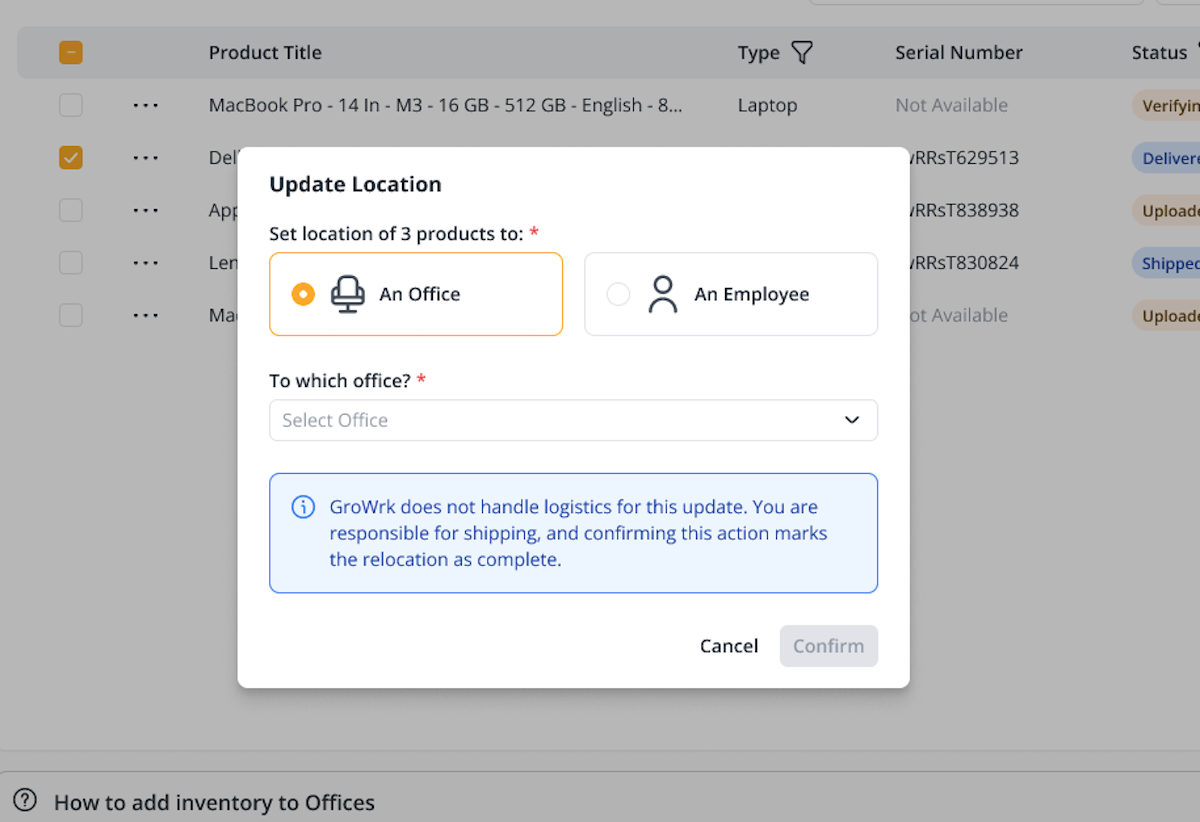
You can also update a product's location from an employee's address to an office. In the Employee Profile, use the three-dot menu and select Update Location.
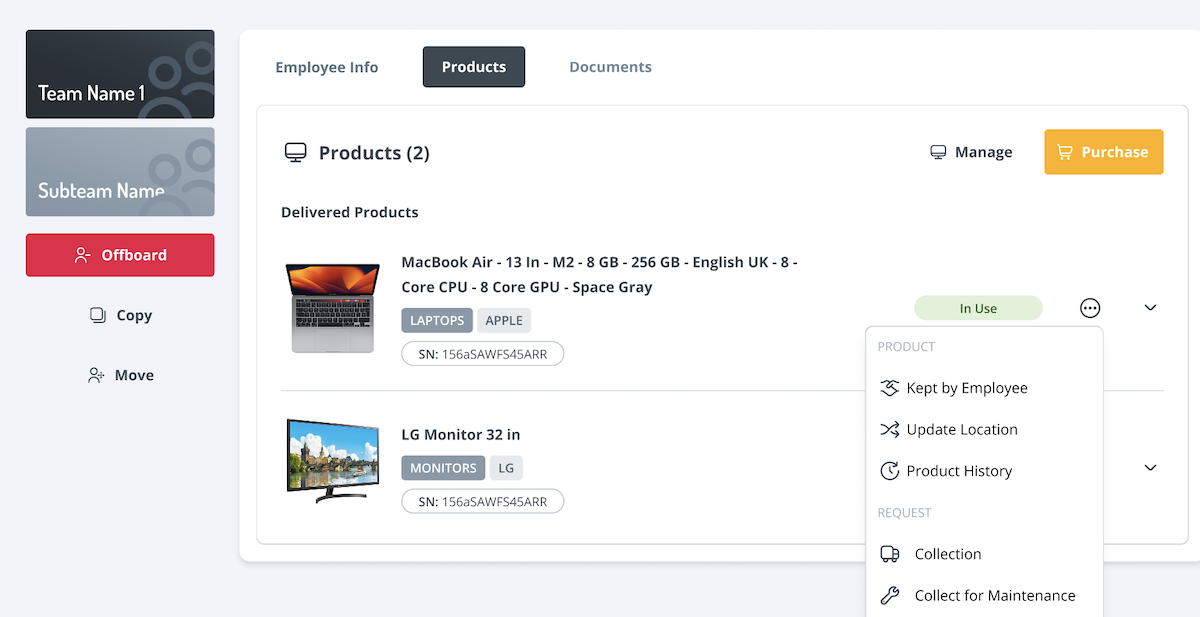
Update the location by selecting either An Office or An Employee, then select the specific location. Using this feature to move a product from an employee to an office or another employee does not involve GroWrk logistics.